Please consider subscribing to LWN
Subscriptions are the lifeblood of LWN.net. If you appreciate this
content and would like to see more of it, your subscription will
help to ensure that LWN continues to thrive. Please visit
this page to join up and keep LWN on
the net.
The open-source vector-graphics editor, Inkscape, is expected to release version 1.4
in October. The release represents an evolutionary step for the program, which
brings new features, user-interface improvements, new and improved
file-format support, and important changes to the code base. The changes in
this release should improve the user experience for both casual and
professional designers, and make Inkscape more compatible with proprietary
vector-graphics software, including Adobe Illustrator and Affinity
Designer.
New and improved dialogs
Dialogs (also referred to as panels) are a core component of the Inkscape
user interface. Implemented as GTK+ tabs and housed in a custom panel
widget (typically
on the left side of the application window), dialogs organize commonly used
tools and settings into groups. For example, the “Fill and Stroke” dialog
contains settings for object colors, gradients, patterns, and swatches, as
well as settings for strokes (whether by themselves or as outlines for
objects).
Thanks to this approach of grouping features and their settings, the
developers can introduce incremental improvements, or add new features
altogether, without seriously compromising the overall layout and
familiarity of the application. In this release, emphasis has been placed
on polishing existing dialogs, while also introducing new ones, such as the
galleries for extensions and filters, which highlight a number of the standard tools and extensions Inkscape provides.
![[Inkcape UI]](https://static.lwn.net/images/2024/inkscape-ui-sm.png "Inkscape UI")
Inkscape is shipped with lots of extensions, written in Python, that
provide features developed separately from the
core project. In previous releases, extensions were only available through
the “Extensions” menu, which does not have features such as
searching or previews. However, with Inkscape 1.4, comes a new
“Extensions Gallery” — a more modern and familiar interface for
browsing Inkscape’s extensions. Benefits of this new
dialog include a dedicated search box for extensions, flexibility through
customization of the dialog, and thumbnails associated with each
extension. Some extensions do not have thumbnails and will use
shared placeholders for now. The Inkscape team has extended an
invitation to the community for contributions to this effort.
![[Filter Gallery]](https://static.lwn.net/images/2024/inkscape-filter-gallery-sm.png "Filter Gallery")
Debuting in this release, the “Filter Gallery” dialog presents all of the SVG
filters included with Inkscape in a searchable format. SVG filters are W3C-standard,
image effects that can be applied to any object, including
raster graphics. In previous releases, filters were only available from the
“Filters” submenu, which organizes them into categories but offers no means
of searching or previewing the effect. Happily, the new dialog provides
a way to find, preview, and select filters.
The previews approximate the action of the filter, but do not present a
live view of the filters’ effects.
The search feature in the “Filter Gallery” allows for finding individual
filters by name. This serves as a more intuitive solution compared to using
Inkscape’s command palette (accessed through “?” on the keyboard). The
command palette is akin to Ubuntu Unity’s HUD, in that it
provides a means of typing any action Inkscape supports, pulling actions from
menus, toolbars, or even extensions.
In the “Filters” menu, filters are listed by their common names, but there
is no search functionality. In contrast, the command palette accesses
filters by their more complex internal names such as
“doc.org.Inkscape.effect.filter.f088“, making them harder to find. The new
dialog simplifies this by allowing users to search for filters using their
common names.
The “Swatches” dialog, which manages color palettes and recently used
colors, has been completely overhauled. Users can now select palettes,
search for colors by name, and load palette files in various formats,
including GIMP Color Palette (.gpl), Adobe Swatch Exchange
(.ase), and Adobe Color Book (.acb). It is also possible
to load palettes using CEILAB
colors, and, to a limited degree, CMYK colors. When loading palettes with
CYMK, the colors are converted to RGB more
effectively than before, even without an ICC profile installed. This
brings Inkscape closer to full CMYK support.
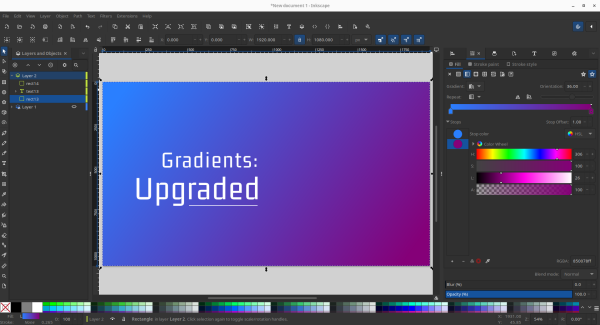
The gradient editor has
also been improved, and gradients can now be rotated from the “Fill And
Stroke” dialog, with the benefit of a full 360° slider.
![[Text and Font dialog]](https://static.lwn.net/images/2024/inkscape-text-font-sm.png "Text and Font dialog")
Working with layers has long been a bit cumbersome in Inkscape,
but, with successive releases, the layer workflow has been improved. The
trend continues in this release, bringing two user-experience improvements to the layer
workflow. When adding a new layer from the “Add Layer” dialog, users now
choose where to place the layer using radio buttons instead of a drop-down
list. This reduces the number of clicks needed and is more discoverable for
new users. In the combined “Layers and Objects” dialog, adding a new layer no
longer brings up the “Add Layer” dialog. Instead, new layers are added on top
of the currently selected layer.
Inkscape’s “Text and Font” panel combines basic text editing, font selection,
and advanced font settings in one interface. However, the existing panel
has problems with spacing and cutting off certain fonts from being displayed
correctly. In Inkscape 1.4, a new, experimental “Unified Font Browser”
has been introduced, which fixes those problems, allowing
users to preview and choose fonts more intuitively. This feature must be
activated through the preferences, at “Edit > Preferences >
Interface > Windows”, and requires a restart of Inkscape to take effect.
Once activated, the unified browser replaces the old font browser in
the “Text and Font” panel. The new browser
brings live previews, search functionality, and extensive customization
options that are not present in its predecessor. On the first run, the new interface may take some time to
initialize, especially with many fonts installed on the system. However,
subsequent uses of the tool only experience a minimal delay to allow for
previews to be rendered. As this feature is still experimental, it is likely
to be further optimized in future releases.
Updated core features
Several of Inkscape’s core features have seen significant changes in this
release as well. The “Shape Builder” tool, introduced in Inkscape 1.3,
now supports raster graphics as well as vectors. This tool provides a
streamlined interface to the use of boolean
operations to create more complex shapes by combining or removing
elements from overlapping objects. Since these operations are not limited
to SVG’s primitives, such as ellipses and rectangles, designers can create
complex shapes, for things like puzzles and cutouts. In the past, achieving
the same result would have required a lengthy process of duplicating,
clipping, and arranging both images and objects — or an extension.
Images sliced with the “Shape Builder” are automatically clipped to
whatever shape the designer requires. Even shapes built within the tool
itself can be used for this purpose. In addition to the new raster-image
support, clones (copies) now preserve their visibility when the original
path is being edited in the shape builder. In Inkscape 1.4, modifying a
parent shape with the “Shape Builder” tool will turn any clones into
independent objects, rather than affecting the clones directly.
It is now
possible to add internal document links and preserve them when
exporting to the PDF format. Previously, only hyperlinks to external
sources were supported. All links are set up in the “Object Properties”
dialog, and can be entered manually, or by clicking
on the target object. Also improved in this release is the text-editing
workflow, featuring a new toolbar layout that places text-alignment buttons
directly on the toolbar as opposed to being in a popup menu as
before. Text spacing has been moved into a popover component, along with
kerning and rotation settings. With these changes, Inkscape is more able to
handle desktop-publishing duties.
Interface and internal changes
This update brings several user-interface changes, including some that
follow the ongoing work to
improve Inkscape’s user
experience by simplifying and streamlining the interface to
improve user workflow. In the world of digital-graphics software, user experience is of
paramount interest, and goes beyond the actual interface itself, building
upon considerations for users’ needs. Inkscape has long
charted its own path with how canvas controls are displayed, not following
more familiar conventions that are common in the industry, which has
negatively impacted some workflows. However, in
Inkscape 1.4, new infrastructure is in place to customize the
appearance of canvas controls. This work is the culmination of a Google Summer
Of Code project by Sanidhya
Singh, and allows controls to be customized using CSS.
Inkscape features a few icon themes out of the box, and version 1.4
introduces a new icon theme, called
“Dash”, designed to cover Inkscape’s extensive library of features
while simplifying the visual style of the application. Borrowing ideas from
other applications in the graphic-design industry, this theme should be
more familiar to users transitioning from other applications. On the merge
request for this icon theme, there’s been some
discussion about replacing the legacy Tango icon theme with Dash once
it is matured. However, for now, no official decision has been announced,
but it has been included among the default themes in Inkscape 1.4.
There are also several new features and changes available via the command
line that are worth noting. Inkscape exposes various actions through the
command-line interface, including features and functions typically accessed
through the GUI. This allows using Inkscape via scripts, and for batch
processing, without the GUI. A full list of these command-line options is
available by running “inkscape –help-all“. Additional
features can be accessed via Inkscape actions, which tap into the
application’s internals and provide more robust control of advanced
features. Actions (and their options) can be listed by running
“inkscape –action-list“.
In version 1.4, Inkscape gains new
actions for editing and exporting SVG files, including setting the SVG
version, removing both proprietary and Inkscape-specific data, removing
transforms from shapes, and various other settings and adjustments. It’s
also now
possible to rotate pages by 90° via a new action. Additionally,
Inkscape gains new
options (“--export-png-compression” and “--export-png-antialias“) for
setting the compression level and antialiasing settings of exported PNG
images.
Finally, Inkscape can now
trace raster images from the command line via a new action, with many
of the same options available from the GUI (in the “Trace Bitmap”
dialog).
Tracing is a process that
makes an approximate reproduction of a bitmap image in vector format.
This work is based on a project
called “Inkscape For Trace”, created by “nullmastermind” on
GitHub.
What’s next?
Features for Inkscape are
chosen according to their maturity, after having been agreed upon between
developers, and listed in GitLab
milestones. This release sets the next stage for a transition to
GTK+ 4, something which is made evident in the GUI by the use of
popovers for context menus. According to Inkscape developer Martin Owens,
the transition to GTK+ 4 was intended to occur with this cycle, but
the development team was unable to land it in
time for 1.4. Instead, the transition to GTK+ 4 is slated to occur with
Inkscape 1.5, which
will also bring a new color-management system, though true support for CMYK output is still in the
works at this time. Instead, the new system will have
support for “DeviceCMYK”, which still uses the RGB color space underneath.
Inkscape 1.4 is set to be a significant milestone for the
vector-graphics editor. Anyone interested in trying out the beta, or
upcoming release candidate for Inkscape 1.4 can visit the download
page and grab the Appimage file, which should run on almost any Linux
distribution.